
The Windows Command Prompt is easier to use when you know a few keyboard shortcuts. Instead of retyping commands or moving through long lines one character at a time, you can use shortcuts to recall previous commands, edit text, and navigate your output.
There are plenty to choose from, but these are the shortcuts I find most useful.
Edit Commands Faster
These shortcuts help you correct and navigate a command before you run it:
- Tab — Autocompletes a file or folder name. Keep pressing Tab to cycle through matching names.
- Home — Moves the cursor to the beginning of the current command line.
- End — Moves the cursor to the end of the current command line.
- Ctrl + Left Arrow — Moves the cursor one word to the left.
- Ctrl + Right Arrow — Moves the cursor one word to the right.
- Esc — Clears the command you are typing without executing it.
- Insert — Switches between inserting text and overwriting existing characters.
- Ctrl + Home — Deletes everything to the left of the cursor when the command line contains text.
- Ctrl + End — Deletes everything to the right of the cursor when the command line contains text.support.microsoft+1
Tab is particularly useful when working with long file or folder names. Type the beginning of a name, then press Tab to complete it instead of entering the whole thing manually.ss64
Recall Previously Used Commands
There is no need to type the same command repeatedly. Command Prompt has several shortcuts for retrieving commands from your current session:
- Up Arrow — Recalls the previous command. Press it repeatedly to move backward through your command history.
- Down Arrow — Moves forward through command history.
- F1 — Copies the previous command one character at a time.
- F2, followed by a character — Copies the previous command up to, but not including, the character you specify.
- F3 — Inserts the remaining text of the previous command, starting at the current cursor position.
- F5 — Cycles backward through previously entered commands.
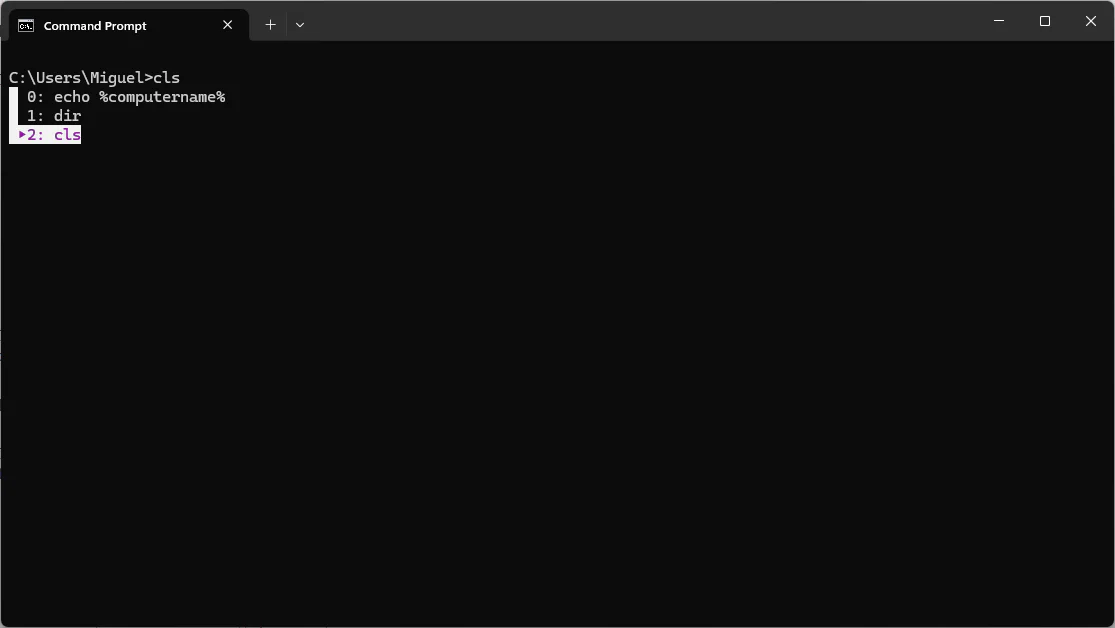
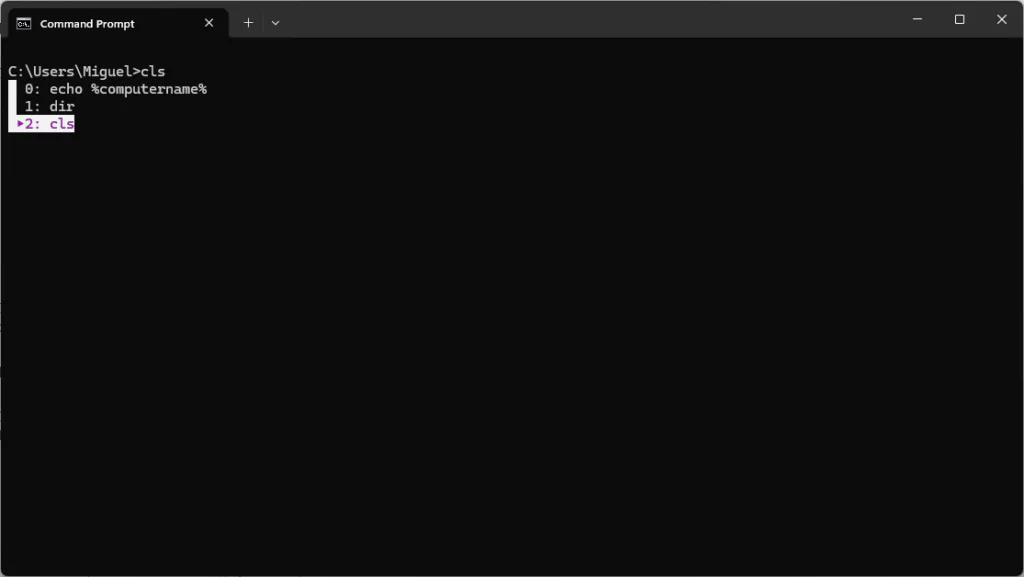
- F7 — Displays a list of previously entered commands.
- F8 — Searches backward through history for commands beginning with the text you have already typed.
- Alt + F7 — Clears the command history for the current session.learn.microsoft+1
For example, type dir and press F8 repeatedly to cycle through earlier commands that begin with dir. This is handy when you remember how a command started but do not want to search through every command you have entered.ss64
One clarification: F7 displays your command history, not a fixed list of only the last 10 commands.bleepingcomputer
Copy, Paste, and Select Text
These shortcuts make it easier to work with command text and output:
- Ctrl + M — Enters Mark mode, allowing you to select text using the keyboard.
- Ctrl + Insert — Copies selected text.
- Ctrl + C — Copies selected text when a selection is active.
- Ctrl + V or Shift + Insert — Pastes text from the clipboard.support.microsoft
Ctrl + C has two roles: it copies text when something is selected, but with no selection, it sends an interrupt to a running command. Keep that distinction in mind when copying output.support.microsoft+1
Scroll Through Command Output
Long command output can quickly fill the window. In the classic Command Prompt console, these shortcuts help you navigate it:
- Ctrl + Up Arrow — Scrolls the output up one line.
- Ctrl + Down Arrow — Scrolls the output down one line.
- Ctrl + Home, with an empty command line — Moves the view to the top of the output buffer.
- Ctrl + End, with an empty command line — Returns the view to the command line.support.microsoft
The output buffer is the stored console text, including lines that have scrolled out of view. Notice that Ctrl + Home and Ctrl + End behave differently depending on whether you are editing a command or navigating output.support.microsoft
Stop a Command or Close the Window
- Ctrl + C — Sends an interrupt to stop a running command when no text is selected.
- Alt + F4 — Closes the active window.support.microsoft+1
A Note About Windows Terminal
Command Prompt can run in the classic console window or inside Windows Terminal. Some shortcuts behave differently depending on which application hosts the session and how its keyboard bindings are configured.
You do not need to memorize the entire list. My picks are Tab for completing names, Up and Down Arrow for recalling commands, F8 for searching command history, and Esc for clearing a line before starting again.
Add Home, End, and Ctrl + Left or Right Arrow, and you have a practical set of shortcuts for every day command-line editing.


