Welcome
perplexity.ai
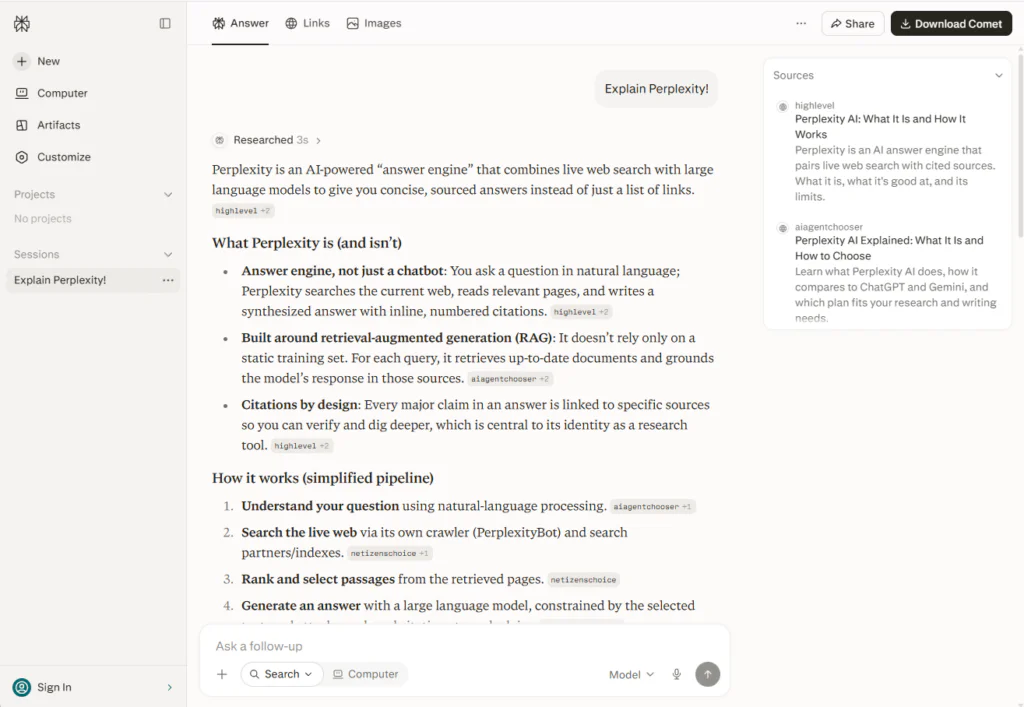
Perplexity.ai is an AI-powered search and answer engine that combines large language models with real-time web retrieval to provide cited, conversational responses.
Unlike traditional search engines, it synthesizes information from multiple sources into concise answers with inline citations.
The tool offers both free and Pro tiers, with features like Focus modes for targeted searches, Collections for organizing research, and integrations that let users act on results (e.g., booking travel or making purchases) directly within the interface.
URL: perplexity.ai
Why Security Baselines Matter Across Every Operating System?
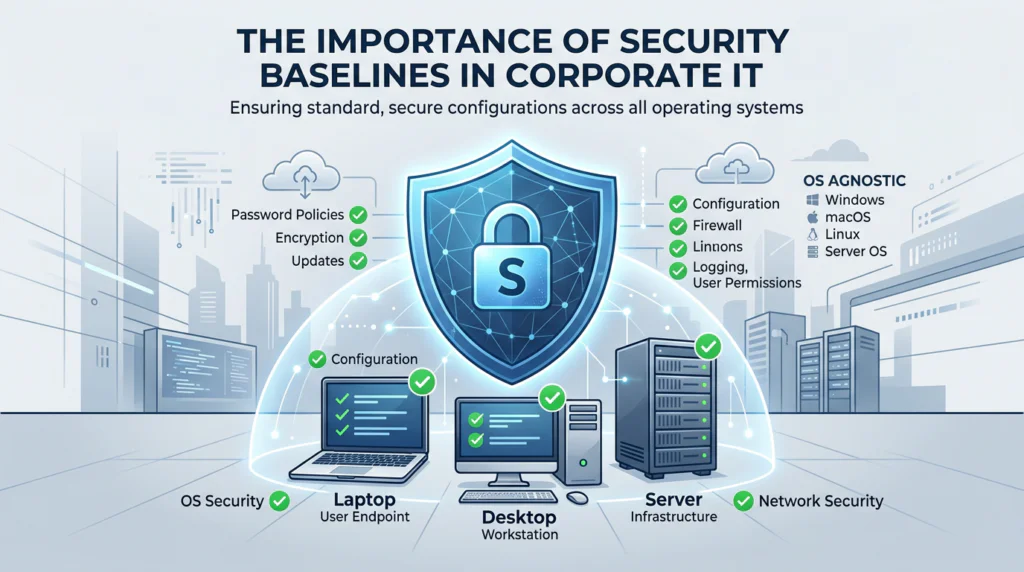
Security baselines are standard settings that define the minimum level of protection every corporate device should have, no matter the operating system. They go beyond antivirus and cover configuration, access, hardening, and visibility across the whole environment.
A strong baseline usually includes multi-factor authentication, full-disk encryption, automatic patching, firewall rules, password and screen-lock policies, and logging. It also includes inventory and asset management, so IT knows how many devices exist, who uses them, whether they are compliant, and whether they should still be allowed access. For example, a baseline may require laptops to be encrypted, servers to be tracked in inventory, and unmanaged devices to be blocked from corporate data.
Modern security also relies on more than endpoint settings. Security platforms can combine endpoint protection, threat detection, device visibility, and response actions in one place. They can flag suspicious behavior, isolate infected devices, identify missing security settings, and help teams check whether a device follows baseline policy. A zero trust network tool adds another layer by verifying identity, device health, location, and request context before granting access, and by allowing users to reach only the specific app or resource they need.
Security baselines are valuable because they make protection consistent and repeatable. They can enforce approved software, disable risky services, limit local admin rights, and maintain asset tracking across laptops, desktops, and servers. That keeps security built into daily operations instead of being handled only after an alert appears.
How to update Ubuntu safely?
Keeping Ubuntu updated is essential for security, stability, and performance. But anyone who has used Linux long enough knows that updates can occasionally introduce issues, especially when core packages or kernels are involved.

This guide walks through a simple, reliable workflow that minimizes risk while keeping your system clean and up to date.
Before touching anything, take a snapshot of your system. This gives you a quick rollback option if something breaks. This step alone turns a risky update into a reversible operation. Using Timeshift (recommended):
sudo timeshift --create --comments "pre-update"The following steps will will support any update doubts.
- Fix broken packages before starting:
sudo dpkg --configure -a

sudo apt -f install- Update your package index so Ubuntu knows what’s available:
sudo apt update- Look for anything unusual, such as major libraries or desktop environment components. Check what will actually change:
apt list --upgradable- Simulate the upgrade. This is one of the most underrated commands:
sudo apt full-upgrade --dry-run- Apply the Upgrade:
sudo apt full-upgrade -y- Remove leftover packages and free disk space:
sudo apt autoremove --purge
sudo apt autoclean- Update Snap packages, if you use Snap apps:
sudo snap refresh- Update firmware and BIOS (requires fwupd + supported hardware)
sudo systemctl start fwupd
sudo fwupdmgr refresh --force
sudo fwupdmgr get-updates
sudo fwupdmgr update- Update GPU drivers (NVIDIA only — AMD/Intel are covered by step 4)
ubuntu-drivers devices
sudo ubuntu-drivers autoinstall- Check if a reboot is required:
if [ -f /var/run/reboot-required ]; then
echo "Reboot required"
else
echo "No reboot needed"
fi- Reboot (Only If Needed)
sudo rebootintuneqlinks.net
IntuneQLinks is a community-driven hub for IT administrators that curates Microsoft Intune tutorials, guides, and practical tools to streamline device management.
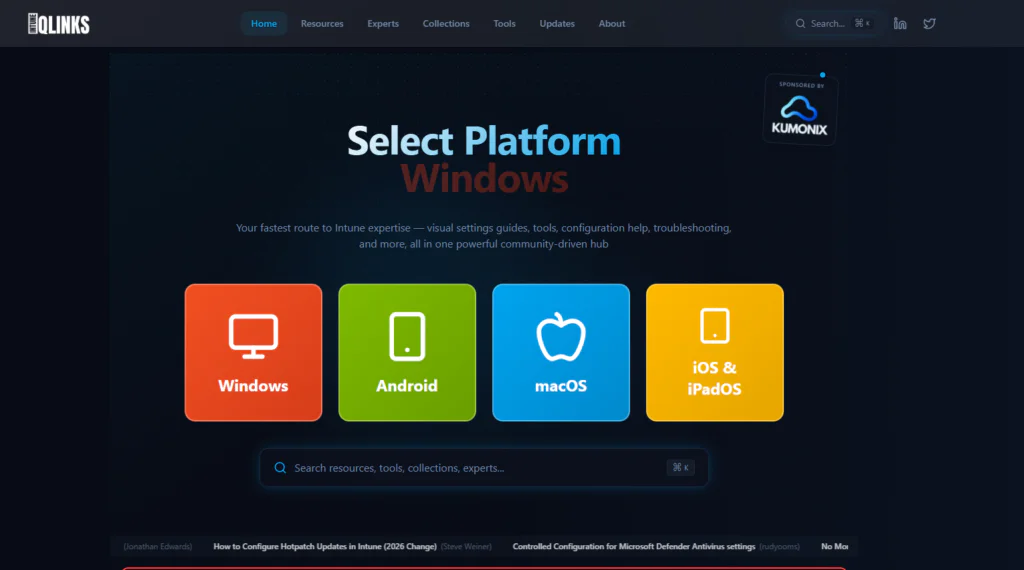
URL: intuneqlinks.net
Ninite
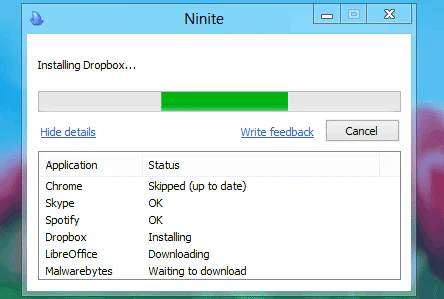
Ninite simplifies Windows software installation by letting you select popular free apps—like Chrome, VLC, Zoom, or 7-Zip—from a categorized list on its site.
It bundles them into a single, hassle-free .exe installer that downloads and installs the latest versions automatically in the background, skipping toolbars, extra prompts, or junk ware.
The tool detects what’s already installed and only handles the rest, making it ideal for new setups or quick updates.
It has a free version and is available here.
Spacedesk
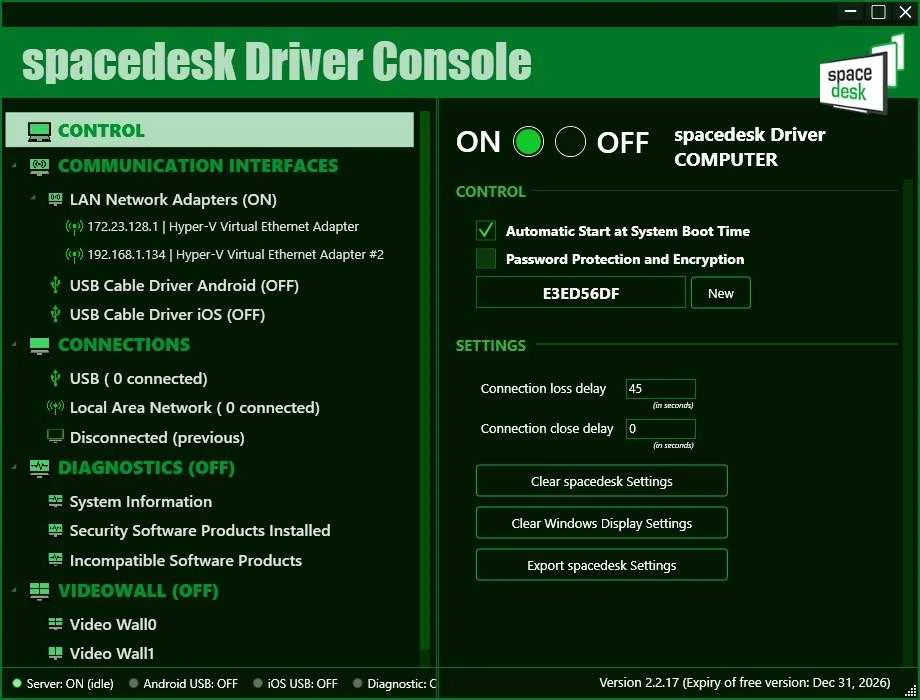
Spacedesk is an easy, budget-friendly way to turn a phone, tablet, or another computer into a second screen for a Windows PC, supporting both extended desktop and mirrored display modes over LAN, Wi‑Fi, USB tethering, and similar network links.
For anyone who needs more screen space without buying another monitor, it is a practical tool that feels especially useful for travel, multitasking, and temporary work setups.
The tool is has free and a paid version, both available here.
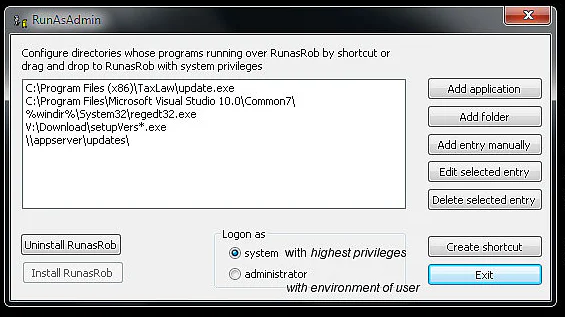
RunAsRob
RunAsRob is one of those quiet but indispensable tools for any Windows sysadmin. It fills the gap between “give the user full admin” and “open a ticket every time they need elevated access,” letting you enforce least-privilege without creating constant friction. Whether you’re managing a domain of 500 machines or just keeping a single shared workstation in check, it’s well worth adding to your toolkit
It has a free version and available for download here.
Use Boolean Search in LinkedIn
With just a few simple operators (plus LinkedIn’s built-in filters), you can turn the default Jobs page into a much more targeted search—closer to the kind of query-style searching many IT folks are used to.
LinkedIn supports these Boolean operators:
- AND : You want both terms included
- OR : Either term is fine
- NOT : Exclude a term
- ” “ : Match an exact phrase
- ( ) : Group terms together
One important detail: write the operators in UPPERCASE. If you type “and” in lowercase, LinkedIn treats it like a normal word.
The Theory

AND
The first example returns roles that mention Data Analyst and also Python. The second expects both VMware and PowerShell somewhere in the description.
On LinkedIn, a simple space often behaves like AND, but keeping AND explicit makes longer searches easier to read. Results must include all terms connected with AND.
A AND BExamples:
"Data Analyst" AND Python
"Systems Administrator" AND (VMware AND PowerShell)
OR
This is useful when different companies name the same function differently. Results can contain one, the other, or both.
A OR BTypical use case: synonyms or similar job titles.
Examples:
("Data Analyst" OR "Business Intelligence Analyst")
("DevOps Engineer" OR "Site Reliability Engineer" OR SRE)
("Helpdesk Technician" OR "Service Desk Technician")
Parentheses
Parentheses are essential when combining multiple ORs and NOTs; without them, the order in which LinkedIn evaluates the terms may not match expectations. Treat the contents as a single logical block.
A AND (B OR C)
A NOT (B OR C)
Think of this like brackets in programming or maths.
Examples:
("Data Analyst" OR "Business Analyst") AND (Python OR SQL)
("Backend Engineer" OR "Software Engineer") AND (Java OR Kotlin OR Spring)
"Software Engineer" NOT ("Company1" OR "Company3" OR "Company4")
NOT
Each NOT acts as a filter: if the word or phrase appears, the result is discarded.Results must not contain that term.
NOT A
NOT "multi word phrase"
Typical uses:
- Remove internships if targeting full‑time
- Remove “senior” if targeting junior roles (or the opposite)
- Remove agencies or specific companies
Examples:
"Data Analyst" NOT internship NOT junior
"Software Engineer" NOT "call center"
"System Administrator" NOT "Company1" NOT "Company2"
Quotation marks
The simplest way to find stings with multiple words. The words must appear together and in that order.
"multi word phrase"Use quotes for:
- Job titles: “Data Scientist”, “Product Manager”, “Customer Success Manager”
- Company names: “Company1”, “Company2”, “Company3”, “Company4”, “Company5”
- Compound skills: “machine learning”, “active directory”
Without quotes, LinkedIn can split the words and interpret them separately.
Examples:
"Data Analyst" AND (Python OR SQL)
"Customer Success Manager" NOT "call center"
"Network Engineer" AND "Cisco ASA"
Putting it together with a simple search recipe
A practical way to build a clean LinkedIn Jobs search:
Step 1 : Start with the exact role
Use quotes around the title.
"Data Analyst"
"DevOps Engineer"
"System Administrator"
Step 2 : Add must‑have skills with AND
"Data Analyst" AND (Python OR SQL)
"DevOps Engineer" AND (AWS OR "Google Cloud" OR GCP)
"System Administrator" AND (Linux OR "Windows Server")
Step 3 : Exclude junk with NOT
Remove internships, the wrong seniority, or keywords that signal irrelevant roles.
"Data Analyst" AND (Python OR SQL) NOT internship NOT junior
"DevOps Engineer" AND (AWS OR GCP) NOT internship NOT "support technician"
Step 4 : Exclude unwanted companies
Chain multiple NOT clauses. Use quotes for multi‑word company names.
"Software Engineer"
NOT "Company1"
NOT "Company3"
NOT "Company4"
Everything can be combined into one line:
"Software Engineer" AND (Java OR Kotlin)
NOT internship NOT junior
NOT "Company1" NOT "Company3" NOT "Company4"
Step 5 : Add LinkedIn’s own filters
After pressing search, refine using the interface:
- Location (e.g. Madrid, Spain, Remote)
- Date posted (Past 24 hours, Past week, etc.)
- Experience level (Entry, Associate, Mid-Senior…)
- Job type (Full-time, Contract, Internship)
- Workplace type (On-site, Hybrid, Remote)
Boolean handles the text, filters handle the metadata (location, date, experience).
Rules of thumb
A few shortcuts that quickly improve results:
Always use quotes for multi‑word titles and companies.
Use OR for lists, AND for requirements
("DevOps Engineer" OR SRE OR "Site Reliability Engineer") AND (AWS OR GCP OR Azure)
Use NOT as a “trash filter”
NOT internshipNOT junior
When aiming at mid-level and block known agencies or consultancies with NOT “CompanyX”
Keep operators in UPPERCASE
AND, OR, NOT – not and, or, not.
Start simple, then iterate
Begin with the title and one or two skills. If results are noisy, add more NOT terms or refine with filters.
Maintain a reusable NOT blocklist
Store a line like:
NOT "Company1" NOT "Company2" NOT "Company3" NOT "Company5"
Paste it at the end of any new search string.
What not to do?
Avoid these common pitfalls for guaranteed results.
Using lowercase operators
"Data Analyst" and Python ❌
"Data Analyst" AND Python ✅Lowercase may be treated as normal words instead of logic.
Skipping quotes for phrases
Data Analyst NOT Company1 ❌ (ambiguous)
"Data Analyst" NOT "Company1" ✅Without quotes, LinkedIn may match data and analyst separately.
Mixing AND/OR/NOT without parentheses
"Developer" OR "Engineer" AND Java ❌
("Developer" OR "Engineer") AND Java ✅Parentheses ensure Java applies to both titles.
Using only NOT terms
LinkedIn expects at least one positive keyword. Use:
"Data Analyst" NOT "Company1" NOT "Company3" ✅
NOT "Company1" NOT "Company3" ❌Building unusably long strings
Huge chains of NOTs become hard to debug. Better approach:
- Keep a master list in a text file or note.
- Periodically clean it up.
- Paste only what is really needed for a given search.
Relying on wildcards
Standard wildcards like dev* are not officially supported in normal LinkedIn Jobs searches, so relying on them can produce inconsistent results. Use OR with full words instead:
(developer OR development OR "software engineer")Example templates to adapt
These patterns can be adapted to almost any IT role.
Mid‑level data roles:
("Data Analyst" OR "BI Analyst")
AND (SQL OR Python)
NOT internship NOT juniorDevOps / SRE:
("DevOps Engineer" OR "Site Reliability Engineer" OR SRE)
AND (AWS OR "Google Cloud" OR GCP OR Azure)
NOT internship NOT "support technician"
Customer-facing technical roles (no call centers):
("Customer Success Manager" OR "Account Manager")
AND (SaaS OR "B2B")
NOT "call center" NOT "telemarketing"
Software engineer, avoiding agencies:
"Software Engineer" AND (Java OR Kotlin OR Spring)
NOT internship NOT junior
NOT "Company1" NOT "Company2" NOT "Company3" NOT "Company5"
Used well, Boolean search plus LinkedIn’s filters turns the Jobs page from a generic listing into a targeted query engine. For anyone used to search operators, it feels much closer to running well-structured commands than scrolling through endless noise.
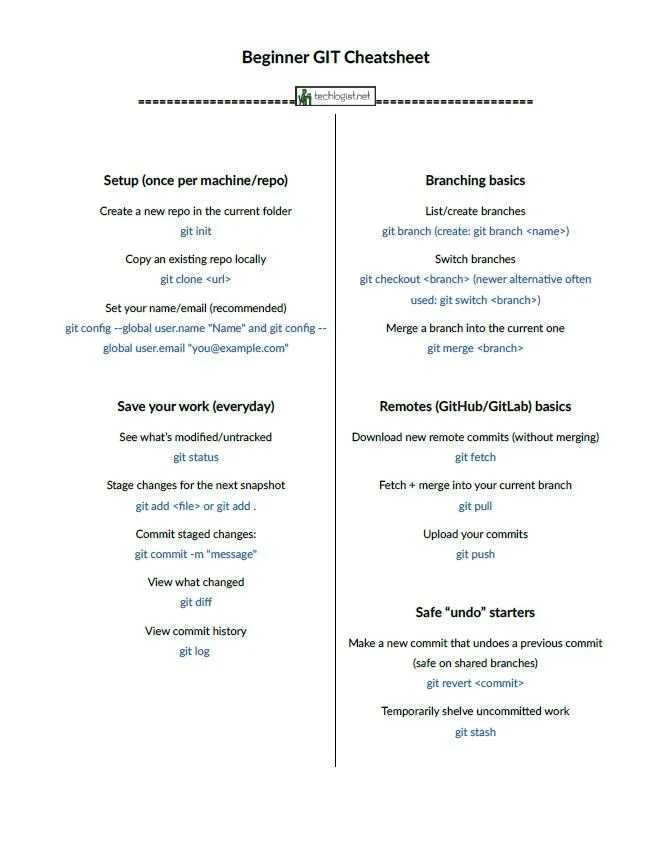
Beginner GIT Cheat sheet
Imagine working on a project and accidentally deleting important code. Or collaborating with teammates, only to have conflicting changes overwrite each other. Git solves these problems by tracking every change you make to your code—like a time machine for your projects.
Git is version control software. It records what changed, who changed it, and when. Whether you’re building solo or with a team, Git lets you work confidently, knowing you can always revert to a previous version if something breaks.
Git has dozens of commands, but beginners only need 10–15.
Download links at the bottom of the page.
Download links:
Name/Size: GIT_Cheatsheet.pdf/27KiB
SHA256: 369efbf9d56e36a1abb2bd79085d498ae1c713b26079a21e5e286de3200ba579
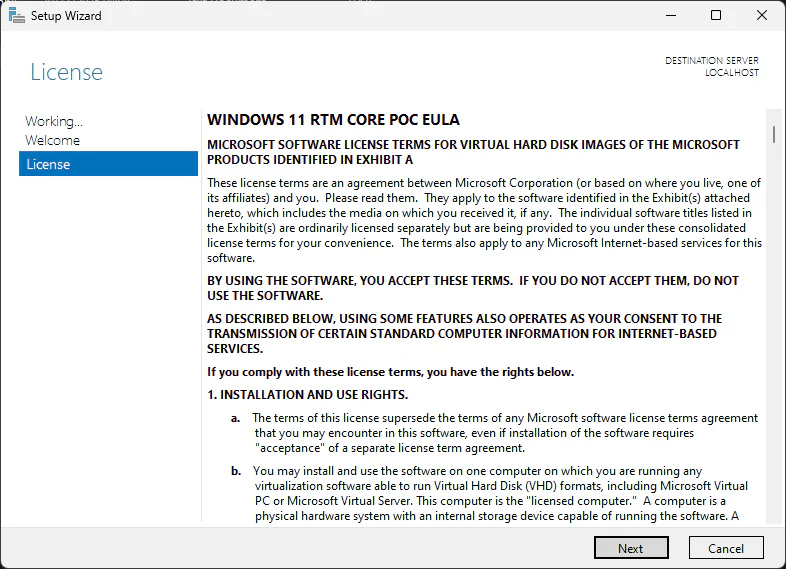
How plan, test, and validate Microsoft 365 environments?
Before rolling out large-scale desktop changes, IT teams benefit from an isolated environment to validate workflows without impacting users. The Microsoft 365 deployment lab kit provides that sandbox, enabling hands-on testing of OS deployment, configuration, security, and cloud management paths.
The lab includes evaluation builds of key tools such as Configuration Manager and supports optional integration with Intune for hybrid (on-prem + cloud) scenarios. You can test deployment methods like task sequences and Autopilot to simulate device enrollment and provisioning.
For engineers using virtualization, the environment can be hosted on Hyper-V, making setup rapid, repeatable, and disposable.
Reserve 30–60 minutes to deploy and run this lab prior to production rollout. The upfront validation reduces risk, increases deployment confidence, and accelerates readiness for a modern workplace model.
Its free and available to download here.
Brave
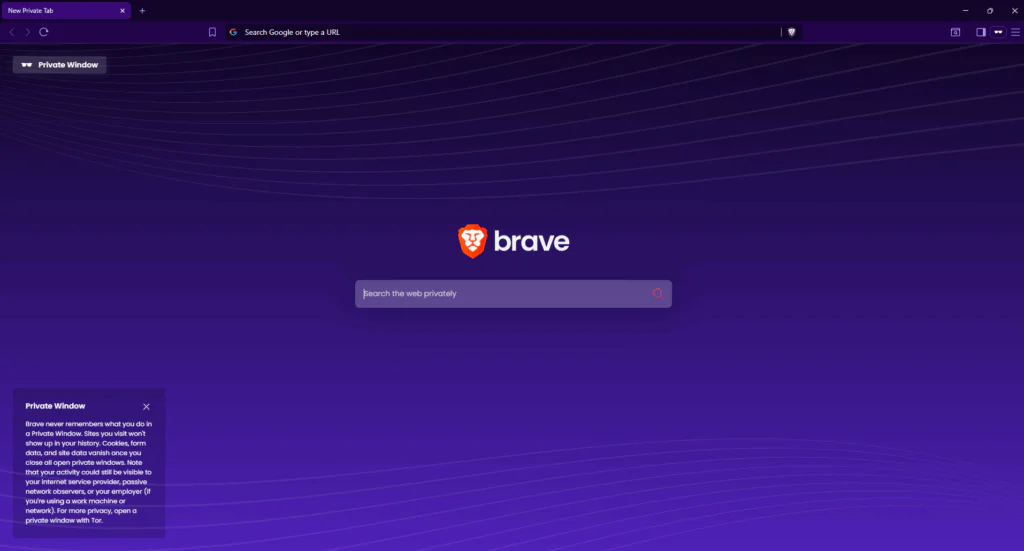
Brave Browser offers a refreshingly simple vision of what the web could be: a place where the user, not the advertiser,comes first. From the moment you open it, Brave removes much of the clutter that has come to define the modern browsing experience: third-party ads, trackers, pop-ups and intrusive banners vanish, leaving pages to load far quicker and with less distraction.
Under the hood, Brave quietly strengthens your privacy by blocking tracking cookies, shielding you from fingerprinting, and upgrading connections to HTTPS whenever possible. It’s like giving your browsing a protective filter, with no extra setup required.
But Brave doesn’t ask you to give up convenience. It remains compatible with familiar extensions, syncs across devices, and — for those who care — offers its own independent search engine that doesn’t build a profile on you. For users curious about cryptocurrencies, it even includes a crypto wallet and support for the Basic Attention Token (BAT), enabling a more user-centric–and optional–way of supporting content creators.
In essence, Brave reimagines the web: clean, fast, private—and firmly under your control. It’s a quiet rebellion against tracking, bloat and noise, built with the hope of putting the web back into the hands of people. It free and available to download here.
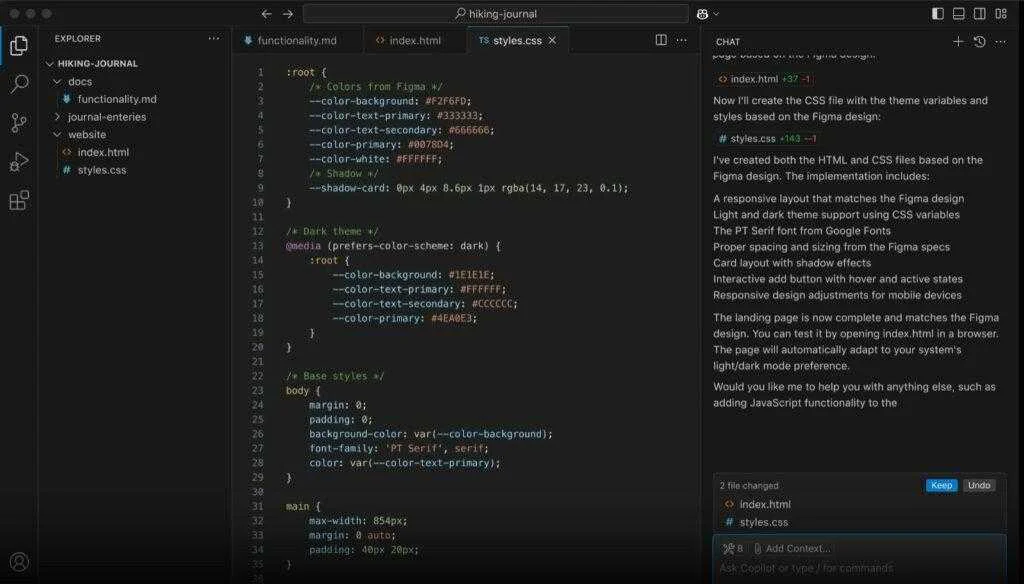
Visual Studio Code
Visual Studio Code, often called VS Code, is one of the most popular code editors used by developers today. One of the best things about VS Code is how lightweight it is. It opens quickly and doesn’t slow down your computer.
VS Code has extensions, you can easily add for any programming language, such as Python, JavaScript, or C++. You can also install themes, code formatters, and even AI tools like GitHub Copilot.
When you start typing code, VS Code gives you smart suggestions through a feature called IntelliSense, a built-in debugger, so you can run your programs and fix errors without leaving the editor and built-in Git integration.
VS Code works on Windows, macOS, and Linux. You can even use it online through VS Code for the Web, so your coding environment can go wherever you do. It’s free, fast, and filled with smart tools that make coding easier for everyone, from beginners to experts. It can be downloaded here.